
Written by the EasyDone team. Last checked 10 October 2026.
Turn it on one person at a time, give each person the lowest text level that still lets them do their job, and make any send to a new address or number ask first. Keep money, access and settings in the app, and check the list the same week someone leaves, changes phones or changes role. That's the whole safe setup, and the six steps below show where each setting lives.
What's really going on?
Texting the business lets the crew add a note, check tomorrow's job or book a return visit without opening an app. It's brilliant, and it's also a key. Take a made up example: Graham Fencing & Retaining in Wanneroo, eight people: two crews, a leading hand called Jordan, the owner Lisa Graham, and her sister Debbie, who does the office three days a week. A new labourer, Toby, nineteen, starts on Monday. Two years ago a bloke who'd left still had the office login on his phone, and Lisa only found out three months later. Most of their day is on site in the northern suburbs, building pool fences in Alkimos and limestone walls in Yanchep, nowhere near a computer.
Texting the business means the crew can do the admin from where they stand, in the gap between one post hole and the next. No app to open, no login to remember. That's the upside, and it's a big one.
The downside is that every phone that can text the business is a door. So the question isn't "should we?". It's "who gets which door, and what happens when someone knocks on the wrong one?"
Here's how to set it up so Lisa can stop thinking about that old login.
1. Who can text the business at all?
Nobody, until you say so. In EasyDone, Text your business starts switched off for every company. The owner turns it on, then picks people from the staff list. You don't type random numbers into a box.1
Each person joins from their own mobile, the one on their staff record, using a one-time code sent to that phone. If two active staff share a number, it can't tell who's asking, so it won't work. That's on purpose. Shared phones and accountability don't mix.1
Start small. Lisa joins first, then Debbie. Their first texts are boring on purpose: "What's Jordan on tomorrow?" Make sure the answers come back about the right job before anyone does anything customer-facing.
And write down who looks after the list. Business.gov.au recommends giving someone clear responsibility for how your business uses AI.2 In a fencing business, that's whoever already handles keys, phones and fuel cards. When someone leaves, changes phones or changes role, the list gets checked that week, not three months later.
2. Which door does each person get?
This is the bit that matters most. EasyDone has four text levels, and none of them gives anyone more than they can already do in the app:1
| Text level | What it means in practice |
|---|---|
| Everything you can do | Owner level, except the few things kept out of text altogether |
| Office work, no money | Jobs, bookings, customers and to-dos, plus some booking and reminder texts |
| Their own jobs | Notes and status on the work they're booked on, with no sends |
| Questions only | Look things up, change nothing |
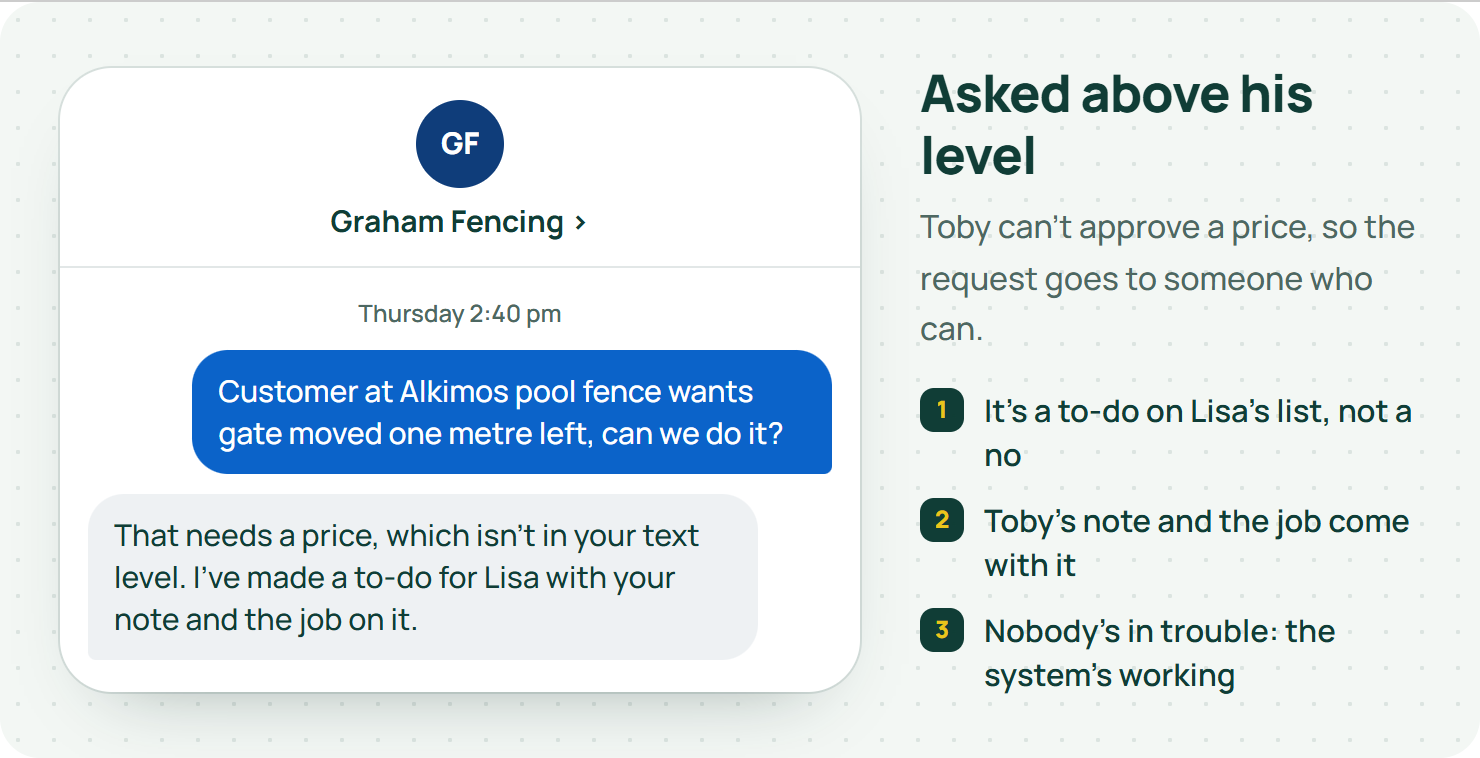
"Office work, no money" means exactly that. No prices, no quotes, no invoices, no purchase orders. And if someone asks for something above their level, it doesn't just say no and leave them hanging. It creates a to-do for the owner, so the request lands with someone who can action it.1
Here's how Lisa set up Graham's:
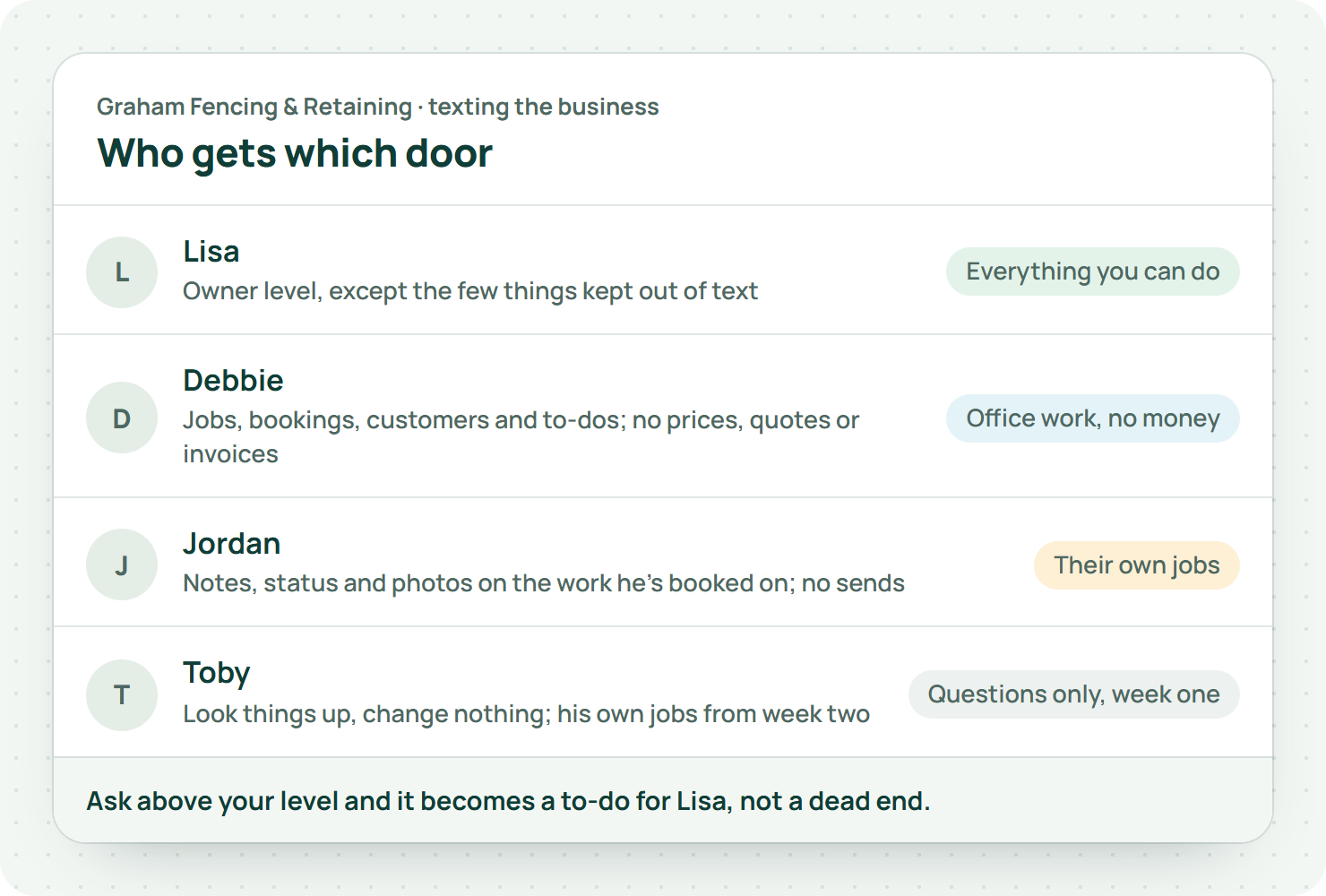
- Lisa: everything.
- Debbie: office work, no money. She does the money in the app, sitting down, where she can see the whole invoice.
- Jordan: his own jobs. Notes, status, photos.
- Toby: his own jobs, too, from week two. Questions only for his first week, while he learns which job is which.
Then Lisa told them the bit most owners forget: what happens when you ask for something you can't do. "It'll come to me as a to-do. That's not you in trouble. That's the system working."
3. When should a text ask before it sends?
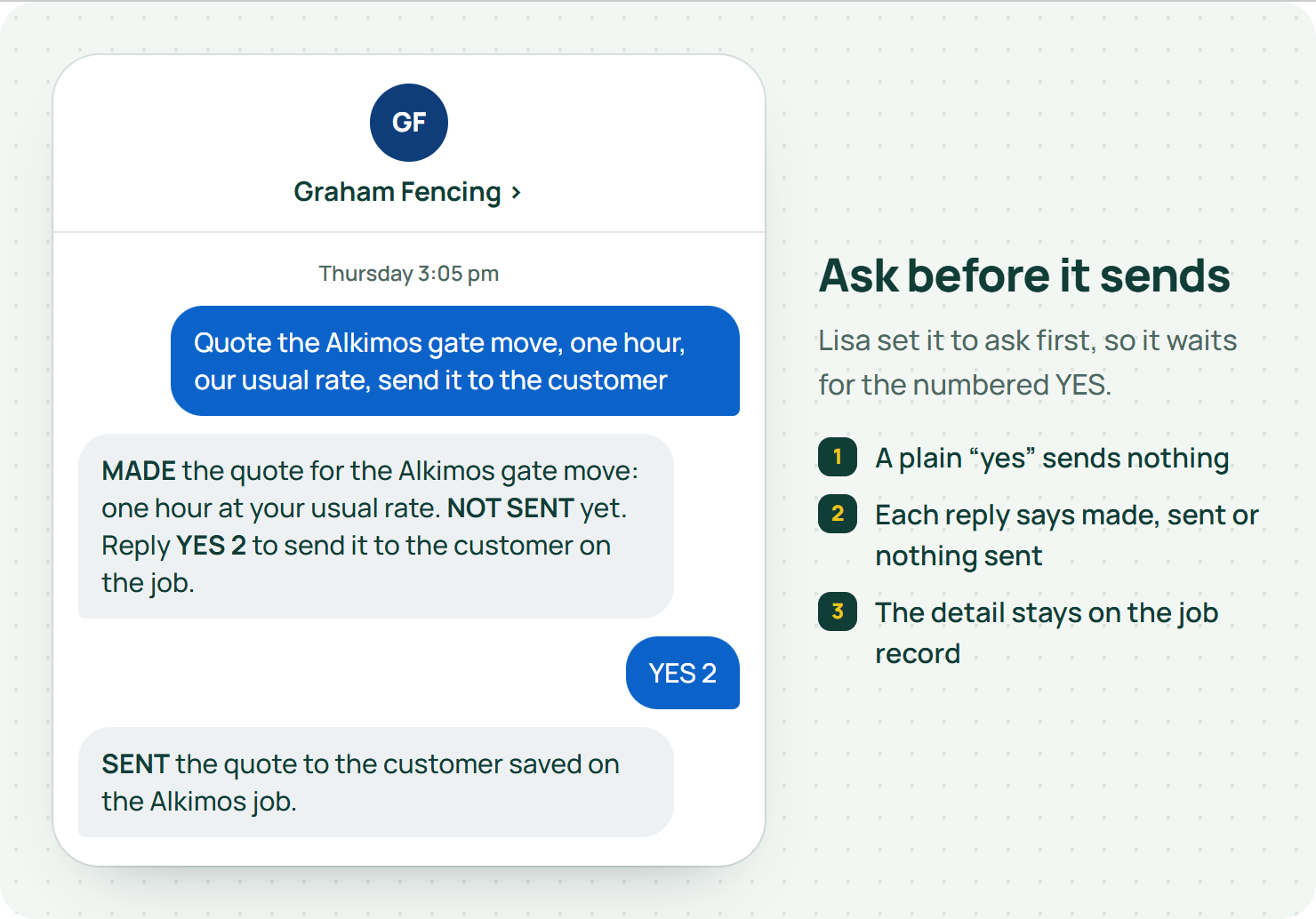
This is the setting to think hardest about. Out of the box, a text that would send something to a new email address or phone number asks first. A send to a contact already saved on the customer can go straight away. Owners can tighten that: ask for anything over a dollar amount, or ask before every single send.1
When it does ask, it gives you a numbered YES to reply with. A plain "yes" doesn't send anything. It also tells you whether the new address is about to be saved as a contact.1
Two things to watch.
First, a correctly spelled email address isn't the same as the right person. The invoice contact at a strata company and the caretaker who lets you in the gate are different people. Read who it's going to, not just whether it looks tidy.
Second, scammers love trade businesses. Scamwatch warns about criminals redirecting legitimate business payments by changing bank details in emails.3 If anyone, by text or email, asks you to change where money goes, ring them on a number you already had. Approving a message isn't checking what's in it.
For the first month, Lisa set Graham's to ask before every send. Once she'd seen a few weeks of real requests, she loosened it to ask for anything over a set amount and for new addresses.
4. What does a good text request look like?
Name the job, the action and anything that matters, like a date or a person. One job per text while you're learning.
"Add a note to the Alkimos pool fence: gate latch on back order, return visit needed when it arrives" is perfect. "Sort that one out" after lunch is a riddle. Your memory of the morning isn't on the job record.
If more than one job could match, use the customer's name or the street. And say what you actually want: a note, a booking, or a message to the customer. Those are three different things.
Keep it about the job. The OAIC warns businesses to be careful about putting personal information into AI tools.4 Use your business channel, not a free chatbot on your phone, and leave out passwords, card numbers and anything that isn't about the work.
5. Read the reply: made, sent or nothing?
Every reply tells you which of three things happened: the record was made, the document was sent, or nothing was sent. Those aren't the same, and the reply says which.1
There's a handy shortcut: reply SEND and it sends the latest unsent document, within a short window. Before you do, make sure that's still the one you mean. If you've done three other things since, open the job and check.1
Our one honest limit lives here. Undo works on a change for a short window, but it can't unsend a text that's already been delivered, and it won't overwrite a later edit someone else made.1 If the wrong thing went to a customer, the fix is a quick, honest follow-up message, not a magic rewind.
Business.gov.au says a good invoice clearly describes the work and the payment terms.5 Same idea with texts about money: the short reply is a signpost, and the record on the job is the detail. When money's involved, look at the actual document.
6. What stays out of text altogether?
Some things are app-only, for everyone, including the owner. Deleting, archiving, settings, people and access, payments and refunds can't be done by text.1 That's on purpose. If you're changing who has access, you should be sitting down looking at it.
And the one rule that has nothing to do with software: no texting the business while driving. WA's Road Safety Commission is blunt about mobile phones and distraction behind the wheel.6 Graham's rule is simple. Read, write and approve when you're parked: before you leave the depot, or when you've pulled up on site.
Customers texting the same number don't get any of this, by the way. Their messages follow a separate conversation path. They can't run your business by texting it.1
Why is this different from the usual "AI" in job apps?
In most job apps the AI sits off to the side: it answers a question or starts a draft, and you still finish the job yourself.
EasyDone's Assistant does the work: notes, bookings, quotes, invoices, chasing, by text, voice or typing, inside the permissions you set. That's exactly why the permissions matter. Something that can actually do things needs proper doors, and Lisa decides who gets which one.1
What happens when someone asks above their level?
The request goes to someone who can say yes. Say a customer at a half-finished pool fence in Alkimos asks Toby to move the gate a metre to the left. Toby texts the business: "Customer at Alkimos pool fence wants gate moved one metre left, can we do it?" He can't approve a price. So it lands on Lisa's list as a to-do, with Toby's note and the address on it.
Lisa reads it in the ute at the Yanchep job, rings the customer, and texts the business herself: "Quote the Alkimos gate move, one hour, our usual rate, send it to the customer." It asks before sending, because that's how she set it up. She replies with the numbered YES.
Toby never needed the keys. He needed a door that led to the right person, and that's what the levels give him.
So where do you start?
Write your team list on the back of an envelope. Next to each name, put one of the four levels. Then turn it on for yourself first, and text the business something boring.
Our guide to AI mistakes on soft jobs is worth a read before you hand out any doors, and our AI approvals guide covers the same rules inside the app.
Then see what EasyDone's Assistant can do and ask us to set it up with your real team list. We'll show you exactly who can do what, before anyone gets a key.